Share it with your team
Share an app like a document. Add people, a team or the whole workspace as viewers, runners or editors. People who only look are free.
Sharing works like a document. An app is private to its owner until the owner or a workspace admin changes that. There is no list of permissions to configure per tool; there is one Share dialog.
- Open the app and press Share (on the City, select the building and press
S). - Under Add people or teams, type a name or an email and choose a role.
- Under General access, decide who else can open it.
- Press Done. The app's page says in one line who can open it now.
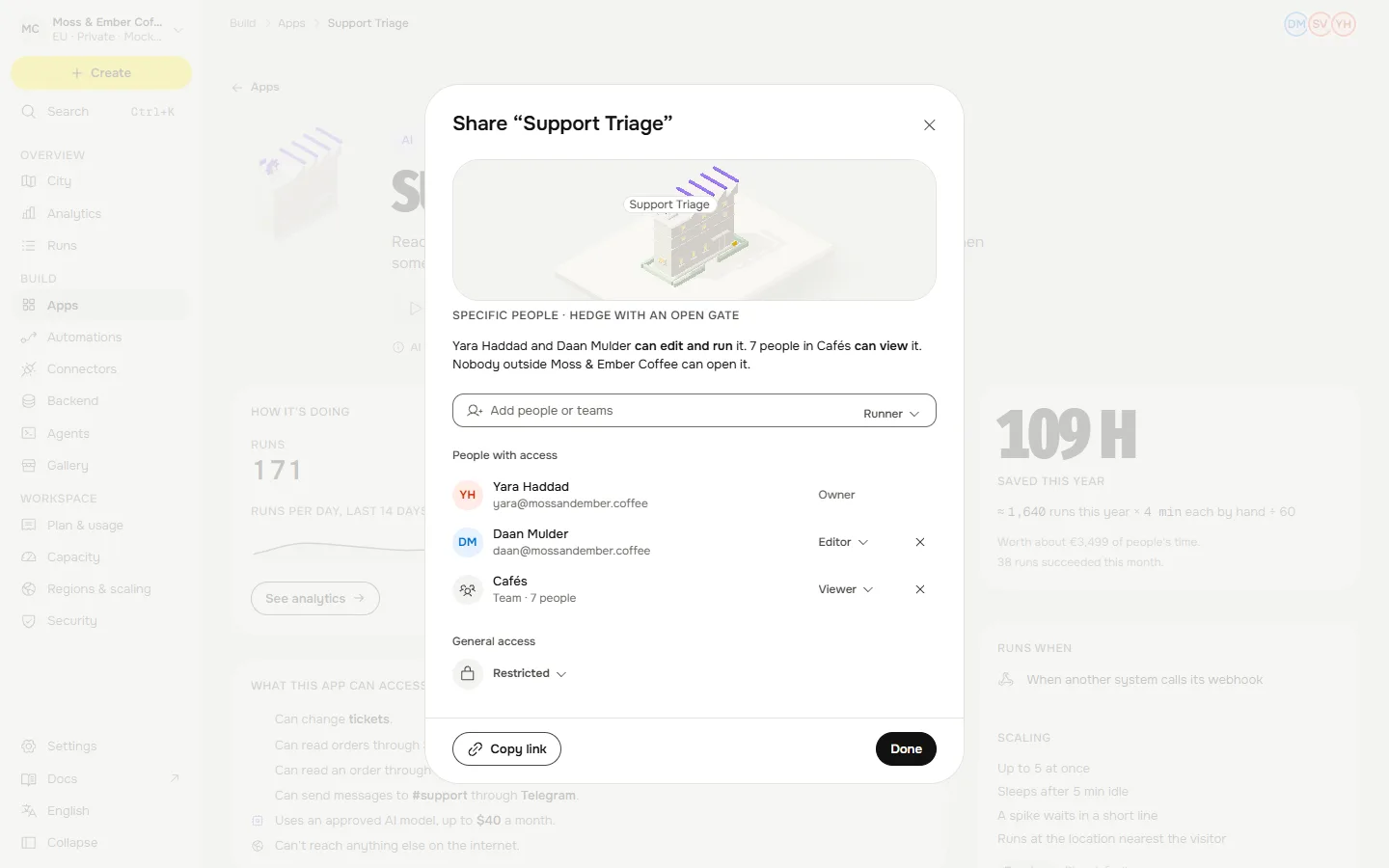
The three roles for an app#
| Role | What it lets someone do |
|---|---|
| Viewer | Open it and see its results. |
| Runner | Run it. A runner cannot see its code or its credentials. |
| Editor | Change how it works. |
Only the owner or a workspace admin changes who has access.
General access#
| Choice | Who can open it |
|---|---|
| Only people added can open | Just the people and teams you added. This is where every app starts. |
| Everyone on one team can open | A team, with the role you pick. |
| Anyone at your workspace | Everyone in the workspace, with the role you pick. |
| Anyone with the link | People outside the workspace. Only for forms and booking pages, only if your workspace policy allows it, and only an admin can turn it on. |
Before Anyone with the link can be turned on, Qaldy runs an exposure check on the app, a stranger's-eye view of what it answers, and asks you to type the app's name. A high-severity finding blocks it until it is fixed.
A person who is not allowed is refused at the gate. They are let in only once someone shares the app. Removing someone takes effect within a few seconds.
Roles in the workspace#
Sharing an app is separate from a person's role in the workspace. The workspace roles are viewer, member, builder, admin and owner, and each one can do what the ones below it can. Permissions and roles lists exactly what each may do. Two things worth knowing now:
- Viewers are free. Pricing is per workspace, never per seat. People who only look at results cost nothing extra.
- A freelancer or an agency can have access that ends on a date. The Team screen takes an end date when you invite someone as a builder, member or viewer. The date is visible to both sides.
Invite people#
Open Team and press Invite people. Type email addresses, pick a role, and choose to send the mail or just make links to copy. An invite works once, for the address it was sent to, and expires (the default is 7 days, up to 30). At most 5 invite emails a day go to one address, and 50 a day per workspace.
If your whole company uses one email domain, an admin can claim it on Team. People whose verified address matches can then join as a member or a viewer in one press. Admins and owners are never added this way.