Connect VS Code
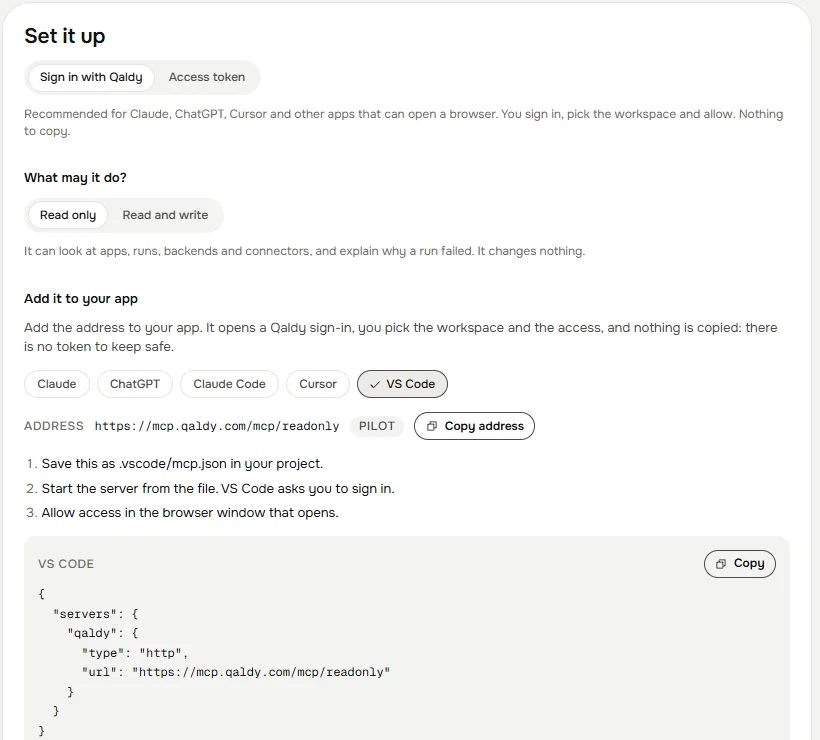
Add Qaldy to VS Code as an MCP server in .vscode/mcp.json, start it from the file, and sign in when VS Code asks.
Create
.vscode/mcp.jsonin your project:json { "servers": { "qaldy": { "type": "http", "url": "https://mcp.qaldy.com/mcp" } } }Open the file. VS Code shows a Start action above the server. Press it.
VS Code asks you to sign in. Your browser opens the Qaldy sign-in. Choose the workspace and read only, or read and write, and press Allow.
The server's tools are now available to the agent in Chat.
One line instead of the file, from a terminal:
code --add-mcp '{"name":"qaldy","type":"http","url":"https://mcp.qaldy.com/mcp"}'Use https://mcp.qaldy.com/mcp/readonly for a read-only connection.
To use a token instead of a browser sign-in, VS Code can ask for it once and keep it out of the file. See Tokens, CI and scripts.
Next: Tools, How an agent stays safe.