Replace a key, set an expiry, press the panic button
Beta
How to replace a connection key without stopping the apps that use it, get reminded before a key expires, and revoke every credential of a workspace in one step when something leaks.
A key you gave Qaldy is write-only: it goes in, is sealed to the gate, and cannot be read back by anyone. That makes three jobs matter more: changing it when someone leaves, knowing when it runs out, and cutting everything off fast when a laptop is lost. All three are in Security and need an admin. None of them is available to a personal access token or an agent: they wait for a person in the console.
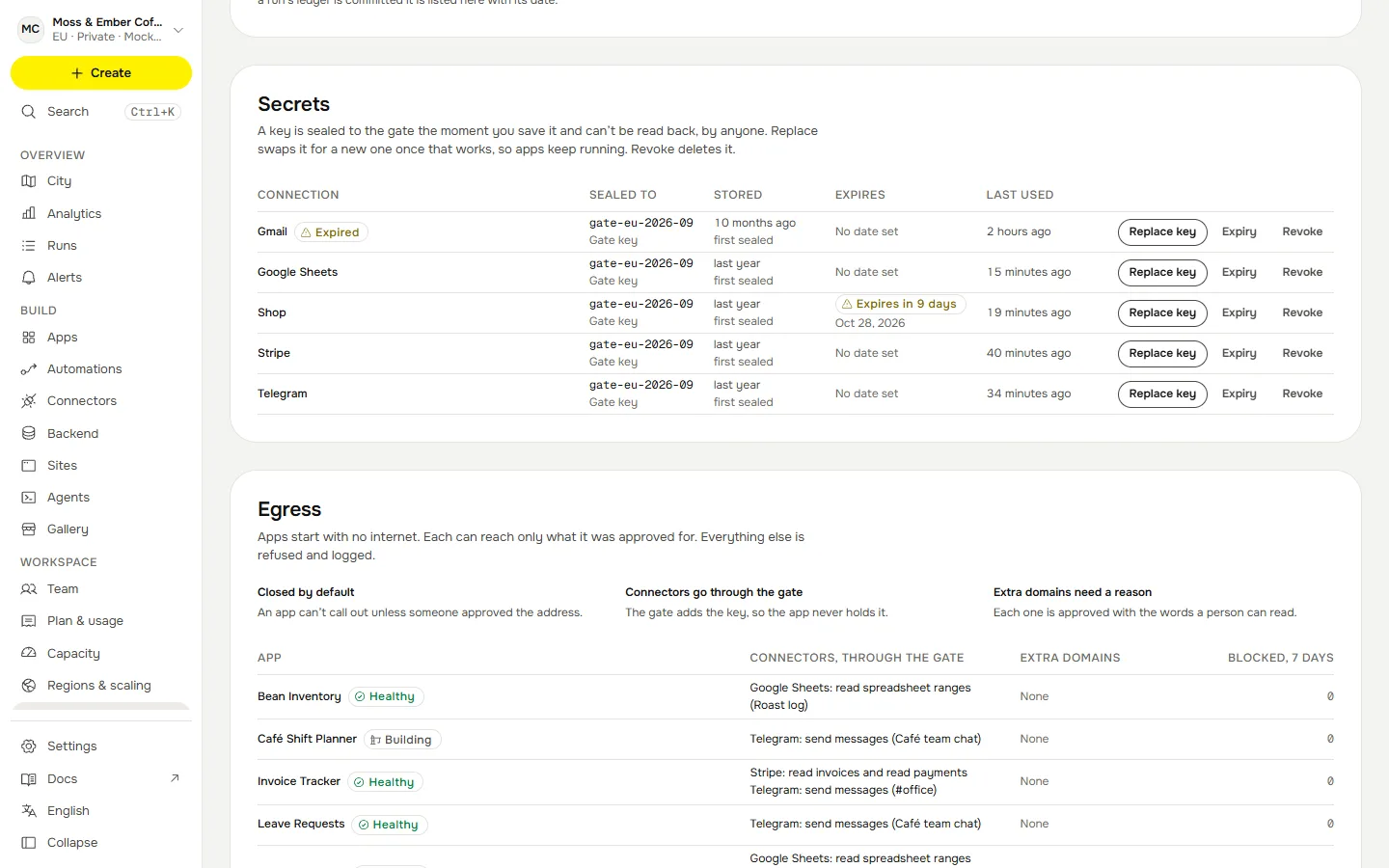
Replace a key without stopping the apps#
On Security, under Sealed secrets, press Replace key for the connection.
- Paste the new key. It is sealed to the gate on arrival and never shown again. For Google Sheets the "key" is a service-account file; Qaldy seals only the parts it needs.
- The old key keeps working. Apps do not stop while the new one is checked.
- Qaldy tries the new key through the gate with the same call as Test connection. If the service accepts it, the two swap in one step. If the service refuses it, the new key is thrown away and the old one stays.
- If the test cannot decide (the service is down, say), the new key waits for a day. You can retry, switch without a check (recorded in the audit log as unchecked), or cancel it.
Each replacement is an audit row with the connection's name and who did it, never the key.
Set an expiry and be reminded#
Some keys have an end date: a token the vendor issued for ninety days. Press Key expiry on a connection and record the date. Qaldy reminds the workspace admins 14 days and 3 days before, and on the day, once each: an audit row and an email. Restarts do not repeat a reminder. Qaldy does not read the date from the vendor; it keeps the date you recorded.
Model provider keys (in Models) are covered by the panic button below but not yet by replacement or expiry.
The panic button#
If a key leaked, a laptop was lost, or an admin account was taken, press Panic button on Security. It asks you to type the workspace's slug (its short name, the one in its address) to confirm, then does all of this in one step:
- revokes every personal access token and every backend key of the workspace;
- signs every other member out;
- ends every MCP sign-in ("connect an AI app" grant);
- deletes every sealed connection key (the connection is marked, and the apps that use it stop calling that service);
- switches inbound webhooks off and replaces their secrets (a public form has none and is left alone);
- makes every model provider key unusable (the sealed value is overwritten with a blob nobody can open; the models, prices and default stay);
- revokes every open invite link.
It writes one audit row with counts, never values, and deletes nothing else: your apps, data, people and history are untouched. After it, reconnect what you still need with new keys.
What is not built#
- Two-person approval for the panic button. Planned
- Replacement and expiry for model provider keys.
- Reading an expiry date from the vendor.