Build your first app
Describe a tool in a sentence, read the plan and every permission as plain words, approve it, and watch it run for the first time.
The Build screen is the front door. You type what you want the way you would tell a teammate, and Qaldy shows you what it would build before it builds anything.
- Describe it. Open Build and answer "What should we build?" in a sentence. For example: Alert me in Telegram when coffee beans drop below 5 kg. Press Plan it. No sentence in mind? Start from an example, or from a template in the Gallery.
- Read the plan. Nothing is built yet. You see the steps, and then what the app is allowed to do.
- Approve it. Press Approve and build. The app is built, given a Trust Score, and run once.
- Connect what it needs. If the app talks to a service such as Telegram, connect it once on Connectors. The plan tells you which ones.
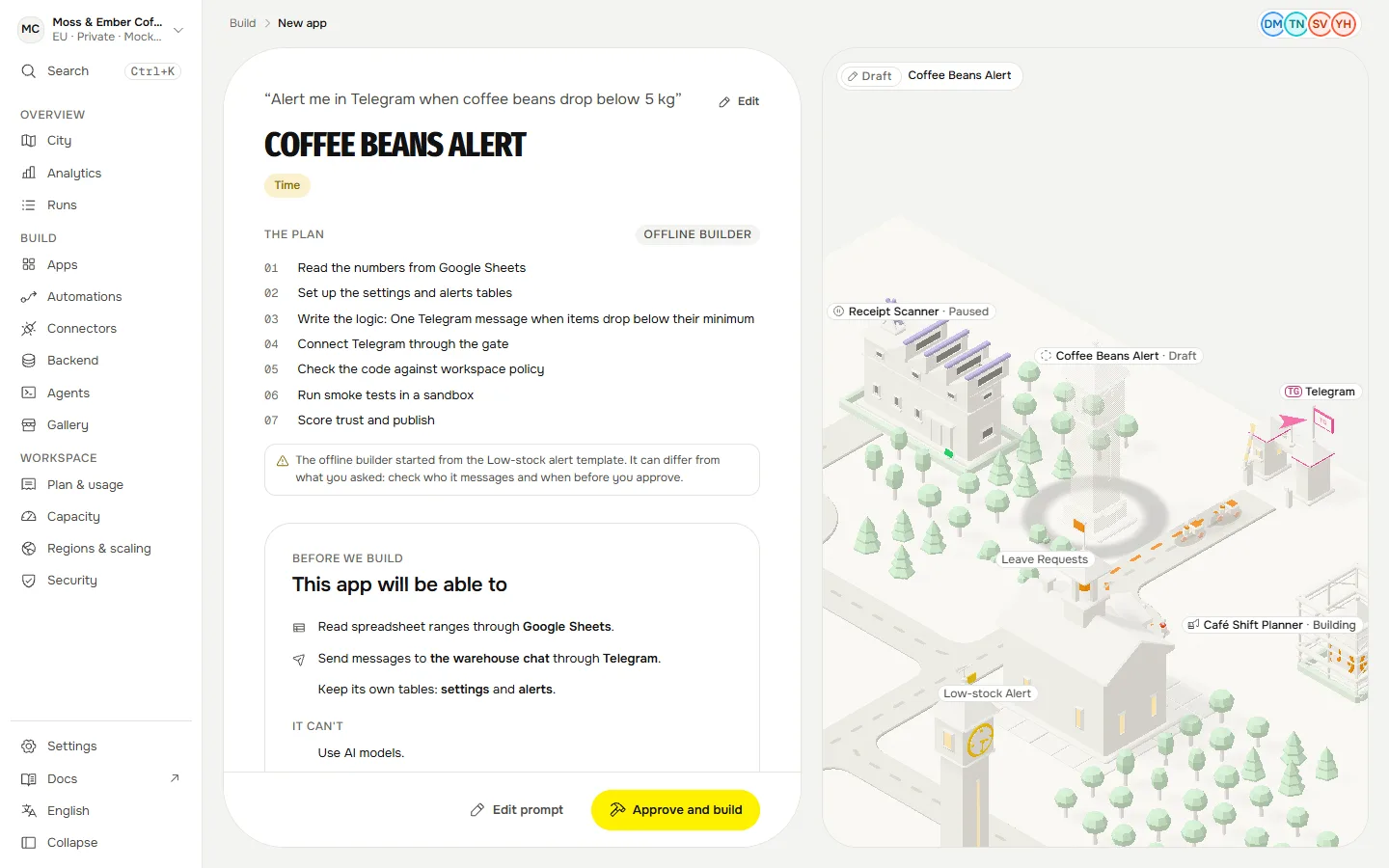
How to read the plan#
The plan is written for the person who has to say yes, not for a developer.
| The plan says | It means |
|---|---|
| This app will be able to | Every permission as a sentence: which data it reads, which connector it may use and for what, which internet addresses it may reach, whether it uses AI. If it is not on this list, the app cannot do it. |
| It can't | What stays closed. By default an app cannot reach the internet and cannot read its own secrets. |
| When it runs | A schedule, a button, a webhook or a form. |
| Who can open it | Private to you until you share it. |
| Time saved | An estimate: the minutes a person spent by hand each run, times the runs. You can edit the minutes; it is never a promise. |
| Built by | Which builder made the plan: Claude, or the offline builder when no model is available. |
Read the permissions. They are the point. (If a coding agent builds for you instead, it can approve only the plainest builds. Anything that reaches the internet, sends messages, uses AI or starts shared waits for a person in the console.)
Who can approve#
- An app that uses no connector and no AI model you can approve yourself if you are a builder or above.
- An app that uses a connector or AI models needs a workspace admin. A member sees "Needs an admin to approve" and can copy a request to send to one.
- Each approval writes a row in the audit log. The full rules are in Approvals and the Trust Score.
The Trust Score#
Every version gets a score from 0 to 100 from static checks on its code and its declared permissions. A version under 60 is saved but not published, so it never gets an address. The score and what lowered it are on the app's Versions list; the checks are listed in Approvals and the Trust Score.
After you press approve#
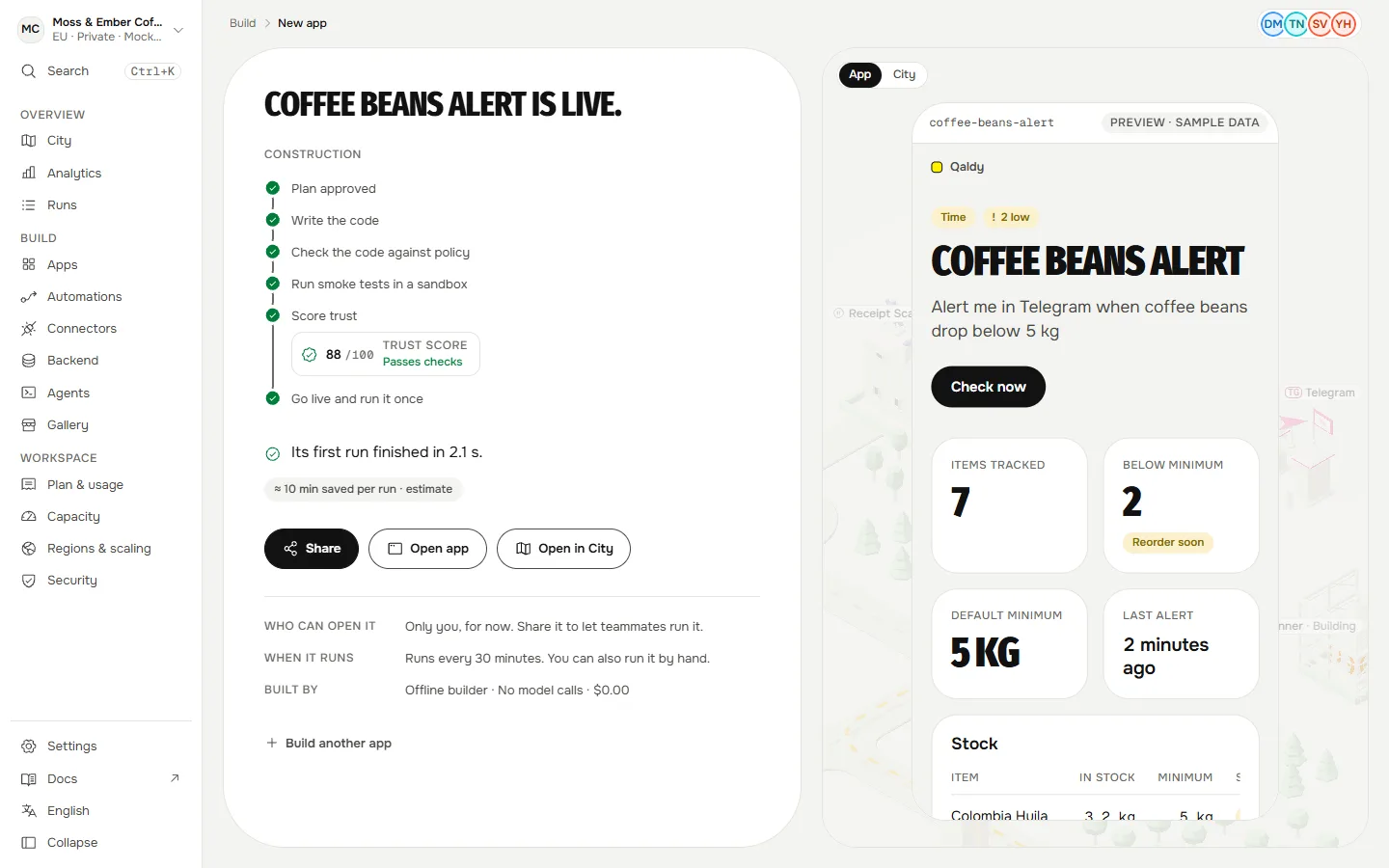
- The build shows its stages while it works. If it fails, the page says why in words.
- The first run starts at once. "Its first run finished" means the app ran in its sandbox; See the run opens it step by step.
- Open in City shows the new building on your island. Open goes to the app's own address, behind your company login. During the pilot the apps domain is temporary; the console always shows the exact address.