Connect ChatGPT
Add Qaldy to ChatGPT as an MCP connector in developer mode, choose OAuth, and sign in to Qaldy. What is needed and what to expect.
ChatGPT can use remote MCP servers as connectors. It is the client whose menus change most often, so treat the labels below as a guide to what to look for.
In ChatGPT's settings, find developer mode (offered on some paid plans only) and turn it on.
Create a connector (or app) for an MCP server, and paste the address:
text https://mcp.qaldy.com/mcpChoose OAuth as the way to sign in.
ChatGPT opens the Qaldy sign-in. Choose the workspace and read only, or read and write, and press Allow.
Start a chat, enable the connector for it, and ask about your workspace.
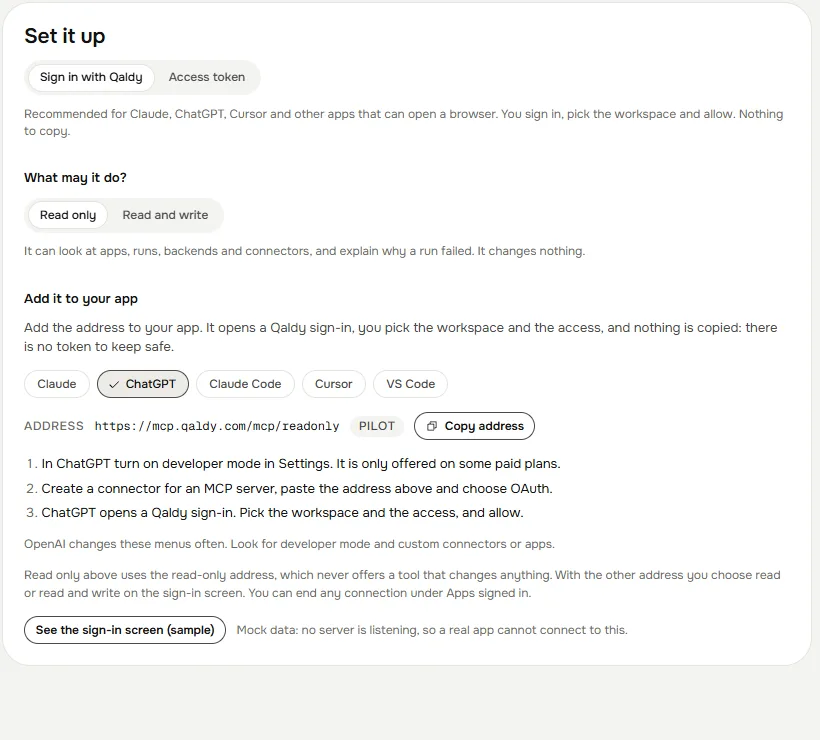
Use https://mcp.qaldy.com/mcp/readonly if you want ChatGPT to look and never change anything.
What to expect#
- ChatGPT reads the server's tool list, and it may show its own confirmation before a tool call. Qaldy adds its own: an approval, a change, a rollback or a decision also asks you to confirm in the client when the client can show a confirmation.
- A build that sends messages, reaches the internet, uses AI or starts shared cannot be approved by ChatGPT at all. It is handed a link to the console, where a person reads the permission sentences and approves.
- Everything ChatGPT does is an audit row with the connection as the actor. End the connection any time under Agents → Apps signed in in the console.
Next: Tools, How an agent stays safe.