Connect Cursor
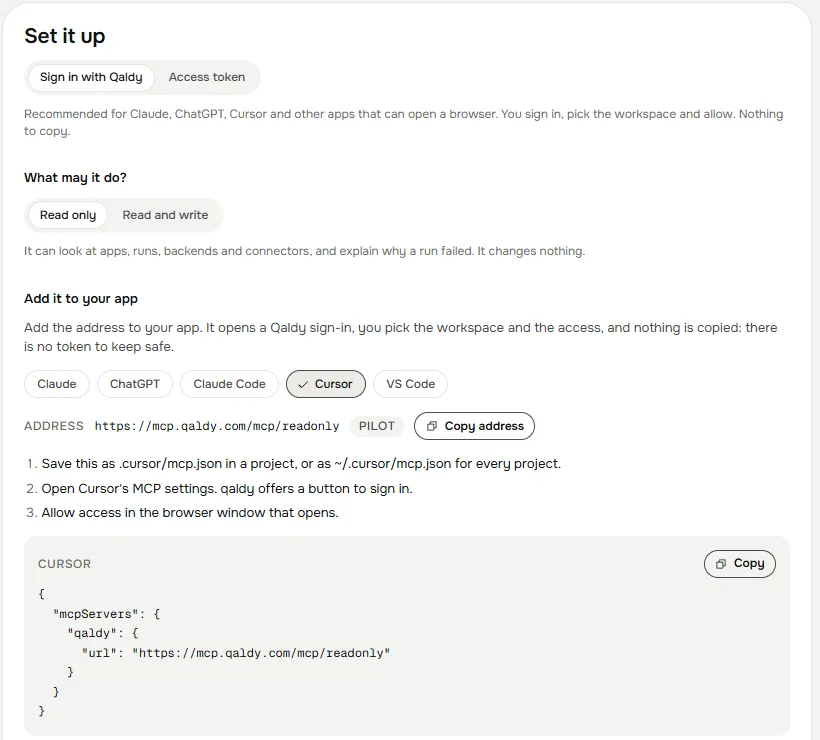
Add Qaldy to Cursor with one entry in mcp.json, press the sign-in button next to the server, and let Cursor build into a workspace your client owns.
Open
.cursor/mcp.jsonin your project (or~/.cursor/mcp.jsonfor every project) and add the server:json { "mcpServers": { "qaldy": { "url": "https://mcp.qaldy.com/mcp" } } }Open Cursor's MCP settings. Next to qaldy there is a sign-in button. Press it.
Your browser opens the Qaldy sign-in. Choose the workspace and read only, or read and write, and press Allow.
qaldy now shows its tools. Ask the agent about your apps.
Or skip the file: the console's Connect an agent page has an Add to Cursor button that opens Cursor and adds the server for you. Cursor then signs you in the same way.
For a connection that cannot change anything, use https://mcp.qaldy.com/mcp/readonly as the url.
If you would rather not use a browser sign-in (a shared machine, a CI job), use a personal access token in a headers entry instead.
Make Cursor follow the rules#
Run qaldy init --mcp in the project once. It adds a section to AGENTS.md telling the agent what Qaldy is, to plan before it builds, to show you every permission sentence, and never to print or commit a token. Cursor reads AGENTS.md. See For agents.
A good first request#
Look at my Qaldy workspace and list the apps that failed this week, with the reason for each.
Then:
Plan an app that posts a message to Telegram when a row is added to our orders sheet. Show me the permissions, and wait.
When the plan is inside the safe band, Cursor asks you to confirm before it approves. A plan that sends messages, reaches the internet or uses AI is approved by a person in the console, and Cursor is given the link.
Next: Tools, How an agent stays safe.